
SafePack app: reading a temperature logger
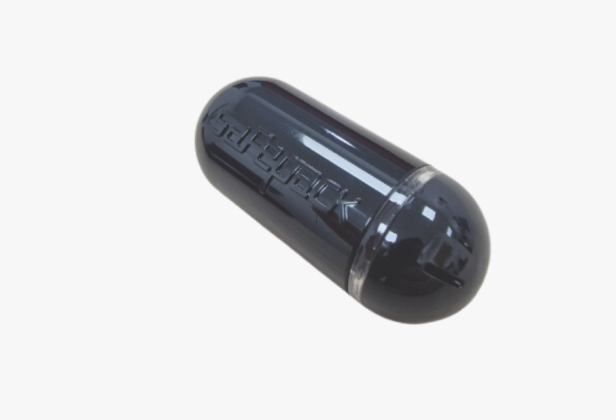
The SafePack Android app reads a SmartSensor logger over Bluetooth when it is nearby. You do not need to open the thermal container. Enable Bluetooth and the permissions requested by the app, then follow the steps below. Use the account credentials assigned for your SafePack access; if you do not have them, contact BIOCARD.
Select the correct logger and reporting period before exporting. A report read from a nearby logger is different from continuous live monitoring. Shipment PDFs are also available in the client account after they are attached to the order. See how to interpret a temperature report.
-
0
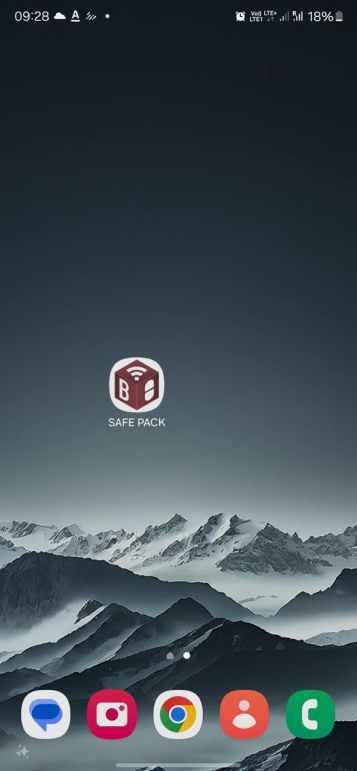
Download and open Safepack App
-
1
Pre-enable Bluetooth and GPS.
-
2
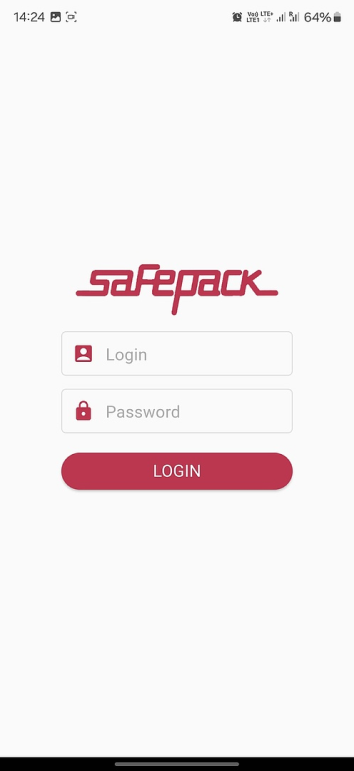
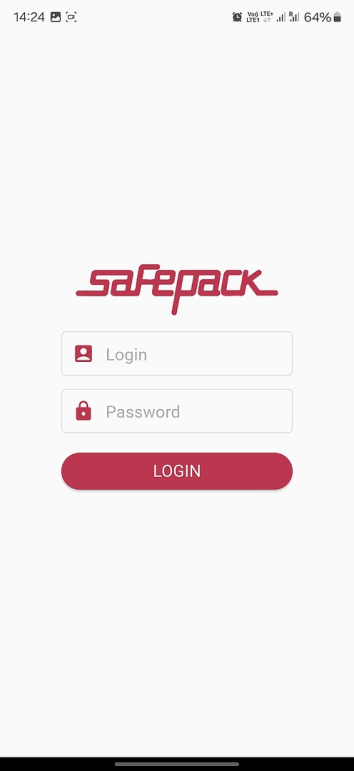
When launching the app, you need to enter your login and password.
-
3
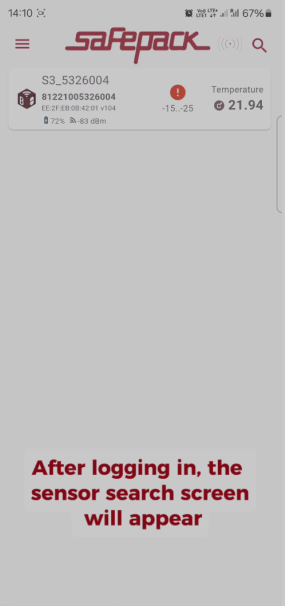
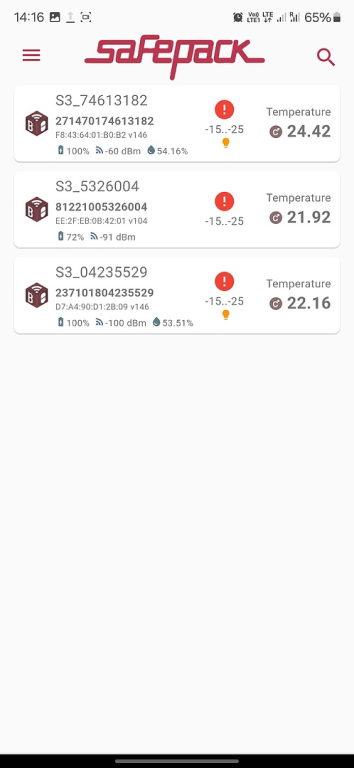
After logging in, the sensor search screen will appear.
-
4
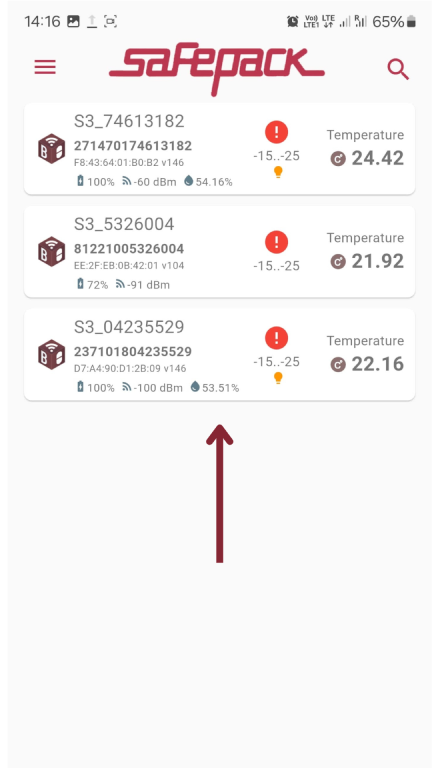
Select the required sensor.
-
5
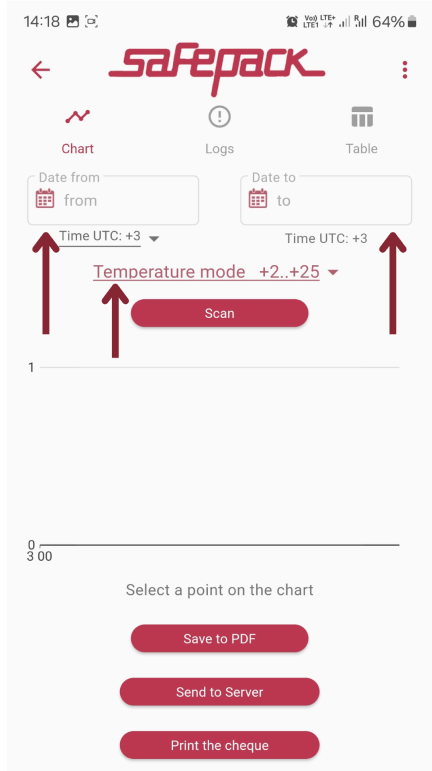
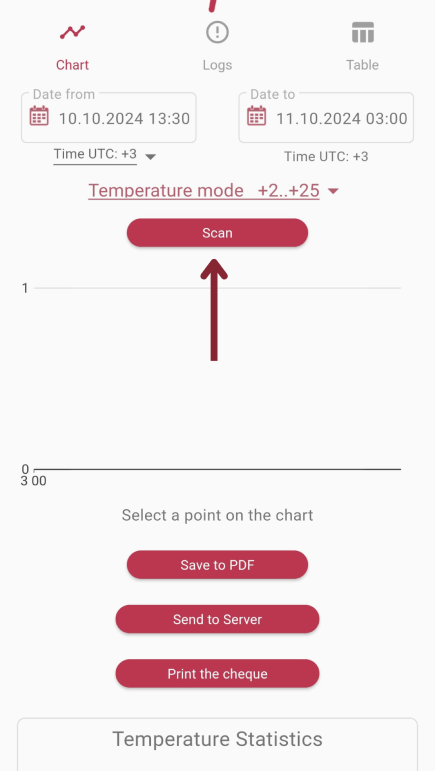
Choose the time and temperature range for the temperature report.
-
6
Press SCAN and wait for the report to load.
-
7
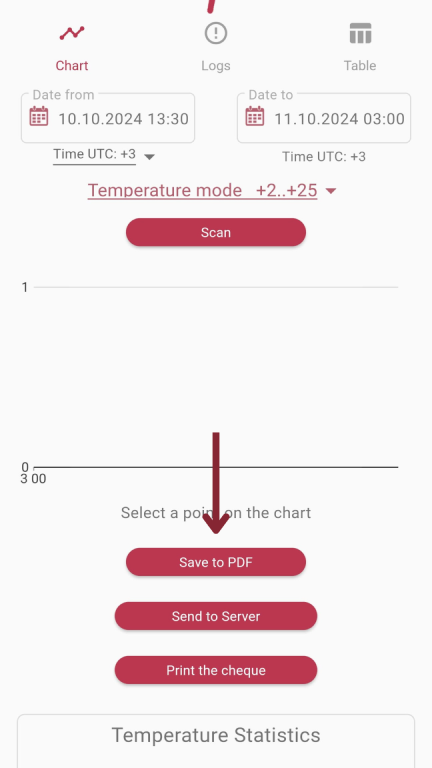
Click Save to PDF to download the report in PDF format.
-
8
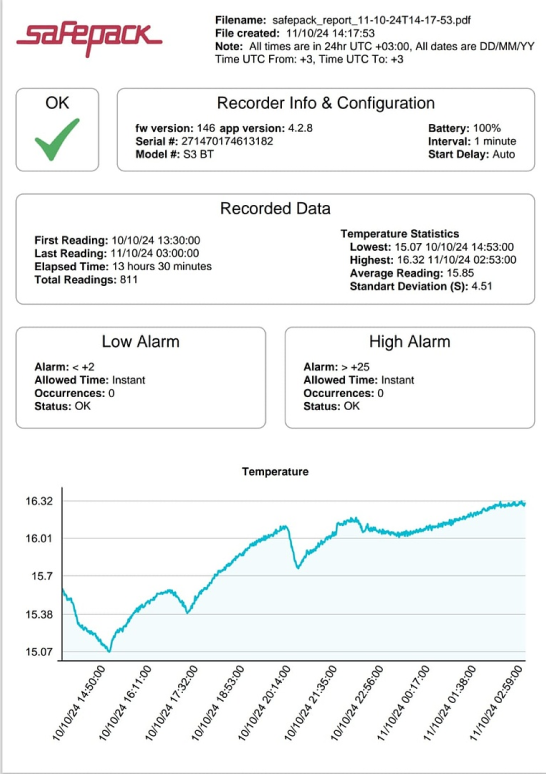
Your PDF report has been downloaded.
If something didn't work out for you, please contact us in the way that is most convenient for you, and we will do our best to resolve your issue as quickly as possible.